
User Guide
Stats Analyzer
In MTG Carpenter, the Stats Analyzer is a workspace mode where you can inspect lots of data about your Magic deck’s composition. If you’re curious about how many cards your deck has by a certain card attribute, the Stats Analyzer is the mode to see.
To activate this mode, click the “Stats Analyzer” tab in the mode menu, or press the 2 key while on a deck workspace page.
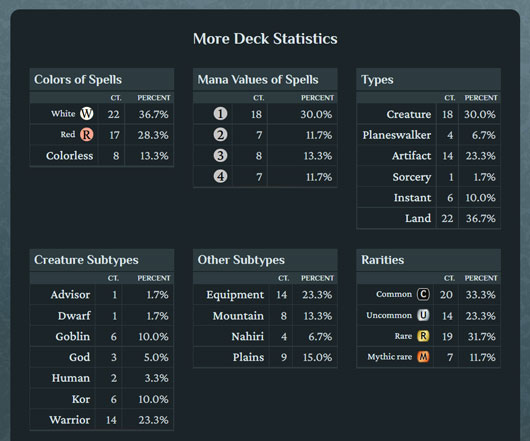
The Stats Analyzer contains two major parts: the array of data tables and the data filter. Both are going to be explained in the next subchapters.
Data Tables
The page for the Stats Analyzer displays many data tables. Each table is for a different statistical category about the cards in your deck.
Between your deck’s card groups, the Analyzer’s data involves only the primary card group (named either “main,” “deck,” or “cube,” based on your deck’s format).
Some categories in the Analyzer can have subcategories, with their tables having a thick border line separating each subcategory. The following are the Analyzer’s categories, with any subcategories indicated in internal lists:
- Tag
- Names
- Colors of Spells
- Colors
- Color composition
- Symbols in Mana Costs
- Whole mana
- Mixed mana
- Mana Values of Spells
- Fixed
- Variable
- Supertypes
- Types
- Specific classifications
- Broad classifications
- Creature Subtypes
- Other Subtypes
- Rarities
- Sets
- Producible Mana Colors
- Keyword Mechanics
- Power/Toughness
- Greatest, median, least
- Variable
- Face Layouts
For almost every category (not Power/Toughness), to the right side of the category’s heading is a number in parentheses. This number represents how many of the table’s main rows contain specific card properties with a count greater than zero. The indicated number of rows automatically updates whenever you apply or remove a data filter that affects the table.
For almost every category, their tables have these columns:
The first column displays the names of card attributes relevant to the category. It shows only the attributes that exist among your deck’s cards.
The second column (“Ct.”) displays the counts of the attributes.
The third column (“Percent”) displays the percentages of the attributes. The basis of a table’s percentages, indicated on each table’s last row, varies between categories. The majority of the categories’ percentages are based on the total number of cards in your deck.
In tables for most categories, their rows are sorted by attributes’ card counts from most to fewest. If multiple attributes have counts equal to each other, then their rows are sorted in alphabetical or another fixed order.
For every double-faced card, most categories count the attributes of the front and back faces together without repeating any same attributes between both.
For almost every category in the Stats Analyzer, if you hover your mouse pointer over the table, then an icon of a white lotus in a purple box appears in the table’s top-right corner. If you click that icon, then a new browser tab automatically opens, and takes you to a certain article on MTG Wikithat’s relevant to the category you were directed from. The MTG Wiki articles provide information about the design and various gameplay concepts of Magic: The Gathering.
Many Magic cards, especially the oldest ones, had been printed with some gameplay information that has since become obsolete. MTG Carpenter goes by Wizards of the Coast’s current edition of card information, which replaces, omits, or expands upon some past cards’ original printed text. As a result, the Stats Analyzer could show card attributes that don’t precisely match what’s on certain physical cards, but it ensures more consistent and accurate deck statistics.
Be aware that the Stats Analyzer’s tables have a certain maximum height limit. This means a table could have more rows available than it can show at once. In such a case, a scrollbar will appear beside the table, letting you scroll hidden rows into the table’s visible area.
Category Notes
Players of Magic should find most of the Stats Analyzer’s categories to be self-explanatory. However, some categories’ statistics have nuances that may not be obvious, as the next subchapters are going to explain.
Symbols in Mana Costs
This category does not count symbols of generic mana, like 2 or X. It also does not count any mana symbols in cards’ rules text.
When counting hybrid mana symbols, each of the colors of a hybrid symbol counts toward the whole mana color in addition to hybrid. (Example: A spell whose mana cost includes one “ ” counts as having three types of mana symbols: blue, red, and hybrid.) Symbols of Phyrexian mana are counted in this way as well.
Only the whole mana color symbols count toward the total number of counted mana symbols. Hybrid and Phyrexian mana symbols do not.
Mana Values of Spells
For double-faced cards, this category counts only the front face, ignoring the back.
The table rows for this category are always ordered by mana value from least to greatest rather than by card count per mana value. The row for the mana value of the largest card count has its lettering appear in bold.
Rarities
The table rows for this category are always ordered by rarity level from lowest to highest rather than by card count per rarity. The row for the rarity level of the largest card count has its lettering appear in bold.
Producible Mana Colors
This category counts each card for only whichever mana colors it can produce, regardless of the amount of that color of mana it can produce at once from its abilities. (Example: For a card with an ability that says, “Tap: Add  [two green mana],” that card counts as one source of green mana.)
Keyword Mechanics
“Keyword mechanics” collectively means keyword abilities (flying, trample, etc.), most keyword actions (scry, mill, etc.), and most ability words (landfall, threshold, etc.).
This category counts only the cards on which their keyword mechanics inherently affect the cards themselves. It doesn’t count every mere appearance of a keyword printed in cards’ text boxes. (Example: For a card with an ability that says, “Target creature gains lifelink until end of turn,” that ability alone does not qualify the card as having lifelink in the Keyword Mechanics statistics.)
Certain keyword mechanics are always accompanied by additional related keyword mechanics that may not be stated on the cards, yet the Analyzer’s statistics include them. (Example: Step Through is a card with only a singular printed keyword ability, wizardcycling, but it also has two implicit keyword abilities, cycling and typecycling.)
Power/Toughness
The table for this category has a subsection for greatest/median/least statistics, which has columns for power and toughness instead of for count and percentage. This is the only table in the Stats Analyzer with a different set of columns.
These statistics concern only the base power and toughness numbers, rather than the expected resulting numbers as modified automatically by abilities. (Example: Faithful Watchdogis effectively a 3/3 creature on the battlefield, but the Stats Analyzer considers it 0/0, reflecting its base numbers.)
The Power/Toughness statistics involve any types of cards with that pair of attributes. These types include not only creatures, but also artifacts of the Vehicle or Spacecraft subtypes.
Face Layouts
This category counts cards based on the certain arrangement of card parts, faces, and other bounded regions on cards.
The vast majority of Magic cards have the normal face layout. Still, many other layouts exist too (like transform, saga, and split).
Data Filter
In the Stats Analyzer, sometimes you may want to examine statistics about a specific aspect of your deck rather than about your deck as a whole. For those times, you can use a data filter, which narrows down the statistics presented to you based on any card attribute you choose.
To turn on a data filter in the Stats Analyzer, click the row of the table regarding the card attribute that you want the statistics to focus on. The rows that can activate filters are the ones with the attributes’ names colored orange instead of white—with the exception of rows in the “Colors of Spells” category, where instead the attributes’ names are colored as their respective mana colors.
The exception to toggling filters is in the table for the Power/Toughness category. In that table’s greatest/median/least subsection, you click a particular cell on a row instead of just anywhere on a row.
Whenever a filter is on, these effects happen:
For any rows of data about your deck that don’t match the selected card attribute, they temporarily appear dimmed. All data will return to normal once you turn off the filter, or once you leave the Stats Analyzer page.
For the table row relating to the filtered attribute, it distinctly appears highlighted yellow with a bright orange outline.
Below the array of tables is the filter notification banner. It indicates the specific attribute that’s currently being filtered for, if any.
In each statistical category, the numbers for the total counts and percentages update to count only your deck’s remaining cards after filtering.
No more than one filter can be active at a time. If you turn on a filter while another is already on, then the new filter replaces (rather than adds upon) the prior one.
To turn off a filter, thus restoring the complete statistics about your deck, do any one of these actions:
On the filter notification banner, click the Stop Filtering button.
Click the table row of the currently filtered card attribute, which is highlighted yellow.