
User Guide
List Editor
In MTG Carpenter, the List Editor is a workspace mode that lets you view, add, remove, and organize every card in your Magic: The Gathering deck. You’ll probably spend more time in the List Editor than in the other workspace modes.
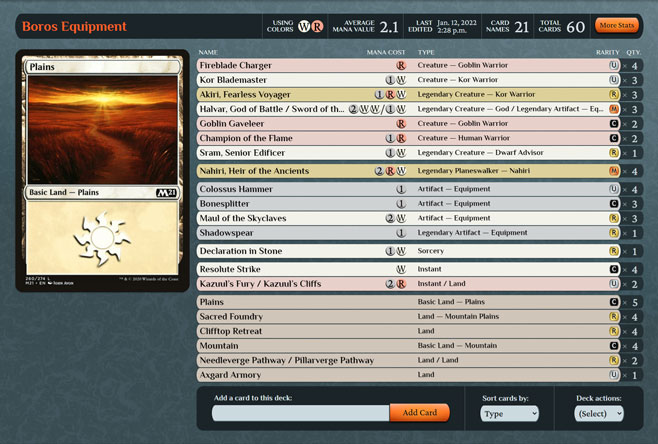
Whenever you open a deck from the deck menu, the List Editor is the workspace mode that’s activated by default. If you’ve set the deck workspace to another mode, you can return to the List Editor by clicking the “List Editor” tab in the mode menu, or by pressing the 1 key while on a deck workspace page.
Almost all elements of the List Editor’s user interface work with its card list section in some way. The card list section is a column of names of certain Magic cards that are associated with your currently open deck in its currently active card group (either primary or secondary). Each distinct card name in the card group occupies one row of the list.
Within the card list section, each of its rows has these parts:
The other parts of the List Editor are the following—by the order of their positions on the page (at least as they appear on a wide computer screen) from top to bottom, left to right:
The List Editor responds to many keyboard shortcuts that do actions involving the card list’s currently highlighted row. A row is highlighted when its card bar in that row has its colored border appear, and its tag and quantity elements have an orange outline appear around them. To change the row to highlight, press the S key to move the highlight to the next row down, or W to move it up. Hold Shift while pressing S or W to boost the highlight’s movement rate. Press Esc to stop highlighting.
The next subchapters explain each of the List Editor’s parts in further detail.
Card Bars
Card bars resemble the bar-shaped graphic elements depicted on modern Magic cards on which the cards’ names and mana costs are printed.
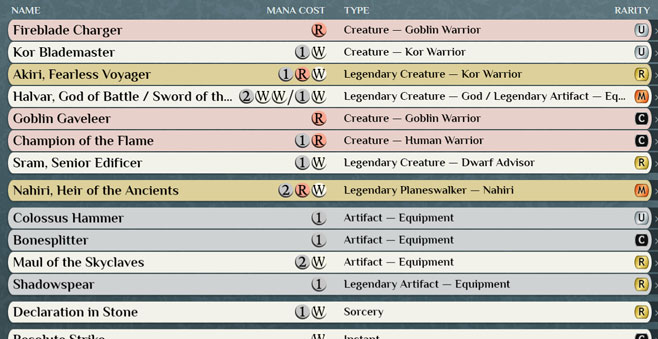
In the List Editor’s card list, card bars represent the certain names of Magic cards in your deck’s active card group. Each bar is labeled with the following characteristics of the card it represents:
- Name
- Mana cost (if any)
- Type line, including supertype and/or subtype (if any)
- Collector symbol, which indicates rarity level and product set
For a card that’s double-faced or split, its bar displays the characteristics of both faces with “ // ” (two slashes) inserted in between.
Click any card bar to view that card’s image.
The color of each card bar’s surface represents the mana color of that card. For example, the bar color for mono-blue spells is blue. Moreover, the bar color for multicolored spells is gold, for colorless spells is gray, and for lands is brown.
MTG Carpenter uses the official current version of Magic gameplay terminology for all cards. Outdated terminology in old cards is revised. For example, in a creature card’s type line originally printed as “Summon Viper,” its card bar in this app uses the modern style “Creature — Snake” instead. (The text in the card image remains unchanged, though.)
The collector symbol on a card bar is colored to match the color of the printed card’s Magic expansion symbol, which indicates the card’s rarity level. The rarity colors are the following:
- Black for common
- Silver for uncommon
- Gold for rare
- Orange for mythic rare
- Purple for special or bonus rarity
The collector symbol also displays the code for the Magic product set that the card is from. A set’s code is typically an abbreviation of the set’s name in 3 or 4 letters or digits. (For example, the code for the original Ravnica set is “RAV.”)
Hover your mouse pointer over a card bar’s collector symbol to make a tooltip appear, which reveals the set’s full name, and the card’s collector number within that set.
Card Quantities
Each card name in the List Editor’s card list has a quantity section, located to the right of the name’s card bar. This section shows the name’s quantity as it is within the card group you’re currently viewing, and provides you controls to change the quantity.
One way to edit a card name’s quantity is to click on the quantity number itself, which makes your web browser focus on the quantity input field. While the field has focus, you can use your keyboard to type in a new number.
Other ways to change a card name’s quantity are to click any of the buttons among the card name’s cluster of quantity-adjustment buttons. This button cluster is normally invisible, but it appears to the right of the quantity input field whenever that field has browser focus, or whenever you hover your mouse pointer over the field.
The cluster of quantity-adjustment buttons are the following:
Increase quantity – Click the button labeled with the “+” (plus sign) to raise the card name’s quantity in the current card group by 1. If a card name is at its maximum allowed quantity according to your deck’s format, then this increment button becomes disabled.
Decrease quantity – Click the button labeled with the “−” (minus sign) to lower the card name’s quantity in the current card group by 1.
Move to other group – Click the button labeled with the word “Move” to decrease the card name’s quantity by 1, while also adding 1 of that same name in your deck’s inactive card group. In other words, it transfers the card from main to sideboard, or vice versa.
Also labeled on this button is a triangle, which either points rightward when it moves cards to the secondary card group, or points leftward when it moves to the primary.
To completely remove a card name from a card list, lower its quantity to 0, or delete the quantity number. Before the name actually gets removed, you’re asked to confirm the removal. If you choose to cancel instead, then the name stays in your deck with its quantity reset to 1.
For faster editing of card name quantities, you can hold the Shift key while clicking any quantity-adjustment button. Doing so on the increase or decrease buttons adjusts the quantity by 4 cards at a time instead of 1. Or, doing so on the move-group button moves all of the name’s cards at a time instead of 1 from the active group to the inactive group.
You can also adjust card names’ quantities using purely keyboard shortcuts. These shortcuts apply to the card name in the currently highlighted row of the card list:
Press E to increase the quantity by 1, or D to decrease it by 1.
Hold Shift while pressing E or D to adjust the quantity by 4 instead of 1.
Press F to move 1 to the inactive card group.
Hold Shift while pressing F to move all present cards of the highlighted name instead of 1 to the inactive group.
Conforming to the standard gameplay rules of Magic, MTG Carpenter restricts you from setting almost any card name to a quantity greater than 4. Exceptions are the basic land cards, and a few particular cards with abilities that specially raise their quantity limits.
Card Image
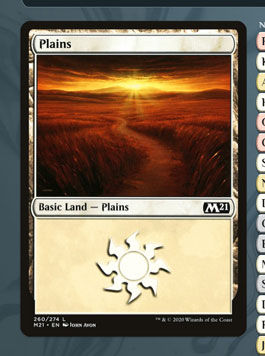
The card image section of the List Editor displays a scanned full-border picture of a Magic card.
The image shown is usually of the card that relates to the element of the card list that you’ve most recently interacted with. (A card list’s elements are bars, quantities, and tags.)
Whenever you add a card name to the card list, or whenever you navigate up or down the list’s rows by pressing the W or S keys, the relevant image is automatically shown.
To look at the card image up closer, hover your mouse pointer over it, or press C.
If you’re using MTG Carpenter on a phone instead of a computer with a larger screen, then the card image is normally invisible. You can still look at any card’s image by tapping the card’s bar in the card list, which makes the image appear hovering over the page. Then, to hide the image, tap the “X” button by the page’s top-right corner.
Click the image, or press Shift+C, to see that card’s page on a certain external website on the topic of Magic: The Gathering. The external website opens in a new browser tab, and it presents you extra information about the specific card. Card images link to pages on TCGplayerby default, but you can set a different destination that you prefer.
Whenever the displayed image is of a double-faced card, a button labeled “Turn Over” appears below the image. Click that button, or press Z, to view the card’s back face.
List Organizer
The list organizer is a tool that lets you instantly rearrange in a desired order all card names of your Magic deck’s card lists. It appears in the section labeled “Organize List by” in the List Editor.
The list organizer has a dropdown menu providing you various card attributes as options. Select one to have the card names sorted in the lists according to that attribute.
Sorting Options
The following table describes the 14 different options of the list organizer and how they affect your deck’s card lists.
| Option | Effect |
|---|---|
Mana Color | Sorts by each card’s number of mana colors, from most to fewest. Monocolored cards are sorted among each other in the conventional order of the mana colors: Colorless cards are sorted between spells and lands. |
Mana Value | Sorts by each card’s mana value (a.k.a. converted mana cost), from least to greatest. Cards with mana value 0 are sorted between lands and spells. |
Type | Sorts by each card’s type in this order: For a card with multiple types, it’s sorted by whichever of its types that comes first in the type-sorting order. |
Tag | Sorts between cards with an attached tag and cards without one. Among tagged cards, they’re sorted by the symbols on their tags, in this order: |
Name | Sorts by each card’s name, alphabetically. |
Supertype | Sorts by each card’s first-indicated supertype, alphabetically. Cards without supertypes are moved to the bottom. (What’s a supertype? It’s a special descriptor that may appear in a card’s type line. The most usual supertypes are “basic” on lands, and “legendary” on various types. Most cards have none.) |
First Subtype | Sorts by each card’s first-indicated subtype, alphabetically. Cards without subtypes are moved to the bottom. |
Last Subtype | Sorts by each card’s last-indicated subtype, alphabetically. Cards without subtypes are moved to the bottom. |
Rarity | Sorts by each card’s level of rarity, from highest to lowest. |
Set and Number | Sorts by each card’s code for its Magic product set, alphabetically. Among cards from the same set as each other, they’re sorted by their collector numbers, incrementally. |
Producible Mana | Sorts by each card’s number of unique mana colors that can be produced (if any), from most to fewest. Among cards that can produce the same number of mana colors as each other, they’re sorted by their first-indicated producible color, in the conventional order of the mana colors (white > blue > black > red > green), followed by colorless. Cards are also grouped with others that can produce the same specific combination of colors. |
Keyword Mechanics | Sorts by each card’s number of keyword mechanics (if any), from most to fewest. (“Keyword mechanics” collectively means keyword abilities [flying, trample, etc.], most keyword actions [scry, mill, etc.], and most ability words [landfall, threshold, etc.].) Among cards with the same number of keyword mechanics as each other, they’re sorted by the frequency of each mechanic within your deck’s primary card group, from most to least. Then, among cards with keyword mechanics of equal frequency to each other, they’re sorted by their keywords, alphabetically. |
Power + Toughness | Sorts by each card’s sum of its base power and toughness numbers, from greatest to least. (For example, the power/toughness sum of a 3/2 creature is 5.) Among cards with equal sums to each other, they’re sorted by their power numbers alone, from greatest to least. Sorting also handles each planeswalker card as though it had power 0 and toughness equal to its loyalty number. Cards without the power/toughness or loyalty attributes are moved to the bottom. |
Quantity | Sorts by each card’s quantity per card group, from most to fewest. |
The list organizer’s menu also provides a checkbox option labeled “Always put star-tagged cards on top.” When checked, this option arranges any cards with the star shape tag above all other cards in the active deck’s card lists, regardless of which sorting method you select. For a deck in a Commander-style format, this setting ensures the commander card remains in a prominent position in the list, if that’s how you prefer to display it. When this option is unchecked, starred cards are sorted in the ordinary way among the rest in the list, not necessarily moved to the top.
Other Notes About the List Organizer
Whenever you use the list organizer, it affects the card names in both the primary and secondary card groups of your currently open deck. It doesn’t also affect other decks you may have.
By every sorting option except for name, the card names are arranged into clusters relevant to the selected card attribute. (For example, the clusters by the “Type” sorting option include the creatures, the sorceries, the lands, etc.) Small gaps are inserted in the card list between each cluster, allowing for easy skimming.
The results of sorting are cumulative, with the most recently selected sorting option given highest priority. For example: Let’s say you first sort by mana color, and next sort by rarity. As the result, the card names are sorted primarily by rarity, and within each cluster for a rarity, the card names are sorted by mana color.
Under certain conditions, the list organizer’s sorting option resets to “(None),” and any gaps in the card list between clusters disappear. Those conditions happen whenever you do any of these actions:
- Add a new card name to the list.
- Change the quantity of a card name while the organizer is set to Quantity.
- Change the tag of a card name while the organizer is set to Tag.
The most distinguishable card attributes to sort by are name and set with collector number. This is because, in the List Editor’s lists, every card’s name and every card’s pair of the set and collector number must be unique, which isn’t necessarily true for the other attributes.
To show or hide the list organizer’s menu via a keyboard shortcut, press Q. When you take this shortcut to show the menu, if the list organizer isn’t currently visible within your web browser’s window, then the page automatically scrolls it into view.
Besides the List Editor, the list organizer affects the order of cards in the Deck Exporter too.
Card Group Switch
In MTG Carpenter, every deck has two independent groups of cards. Generically, they’re referred to as the deck’s “primary” and “secondary” card groups. They also have specific names that vary by the selected deck format:
| Primary Group | Secondary Group | |
|---|---|---|
| Classic Magic formats | “Main” | “Sideboard” |
| Most Commander-style formats | “Deck” | “Considering” |
| Cube Draft format | “Cube” | “Considering” |
The List Editor mode displays only one card group at a time.
In the List Editor, the card group switch is a pair of buttons that appears in the section labeled “View Card Group.” The switch lets you toggle between your deck’s primary and secondary groups for interaction in the Editor. You also can press the R key instead to toggle groups.
The card list and card adder work with only the group that’s currently active. The list organizer, however, works with both groups simultaneously.
Whenever you arrive on a deck’s List Editor page, the card group is automatically set to the primary one. Whenever you switch to the secondary, the sideboard header is displayed to indicate that.
Sideboard Header
In the List Editor, the sideboard header is a brown banner with the name of your deck’s secondary card group—either “Sideboard” or “Considering,” depending on your deck’s format. This banner is initially hidden, but it becomes visible above the card list whenever you set the card group switch to the secondary group.
The sideboard header also shows the total number of cards contained within your deck’s secondary group. If this group contains more cards than permitted by your deck’s selected format, then a “⚠” (warning symbol) appears beside the total. In classic Magic formats, the sideboard’s maximum limit is 15 cards. If the secondary group is Considering (rather than Sideboard), there’s practically no maximum limit.
Secondary Group Uses
In MTG Carpenter, a deck’s secondary card group (Sideboard/Considering) can contain cards that are related to your deck, but are separate from your deck’s primary card group.
You could use the secondary group for any of these purposes:
When you’re in the process of constructing a new deck, the secondary card group can temporarily hold cards you’re considering to include in the primary group, but you haven’t firmly decided on yet. You might appreciate the secondary group for this purpose because the cards it contains don’t meddle with the deck’s data that’s presented in the deck workspace header’s basic deck information (except “Last Edit”) and the Stats Analyzer.
For a deck in a format that allows sideboards, the secondary card group is your deck’s sideboard. When you’ve finished making your deck, the sideboard can keep extra cards—usually to a maximum of 15—as potential substitutes for cards in your deck’s main (primary) group. You can temporarily swap in cards from the sideboard to adapt your deck for a rematch versus an opponent whose deck you’ve realized has certain strengths and weaknesses against yours.
Some cards have abilities that specially let you get cards from “outside the game.” The sideboard can contain the outside cards that you intend to play with your deck.
Of the four deck workspace modes, only the List Editor and Deck Exporter, as well as Card List Entry, use the secondary card group.
Card Adder
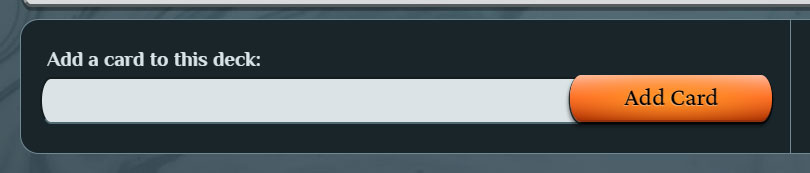
The card adder is a tool that lets you indicate a new name of a Magic: The Gathering card to put into your deck. The card adder appears in the section labeled “Add a New Card Name” in the List Editor.
The card adder will insert the new name into the card list for either your deck’s primary or secondary card group—whichever one you’ve currently set the card group switch to. The panel color of the card adder section changes as the card group does: It appears dark gray when on primary, and brown when on secondary.
The card adder has a simple submission form with a text field where you enter a query for a card. One kind of query is a standard card query, which has a card’s name at the minimum, but may optionally also include the card’s quantity, set code, collector number, and language code. The other kinds of card queries are for a card page URL and a random card.
To submit your query in the card adder, click the “+” (plus sign) button located to the right of the text field, or press the Enter/Return key.
The card adder works with only one card name at a time. To add multiple at a time, go to the Card List Entry page instead.
More details about card adder queries are explained in the next subchapters.
Card Name Only
In the card adder, simply enter the certain name of a Magic card. Spelling matters, but letter case doesn’t. If valid, that name is added to the card list.
If the card name has been printed in multiple sets or has alternate prints, this basic name query will usually get one of the newest normal-style prints.
Set Code
For card names that have been reprinted in multiple Magic product sets, you can specify which one you prefer. In your query, after the card name, enter the set’s certain code—typically 3 or 4 letters or sometimes digits, in any letter case—either between parentheses, between square brackets, or after a semicolon.
For example, submit the query “Shivan Dragon; 9ED” to add the card Shivan Dragon from the set Ninth Edition (code “9ED”).
MTG Carpenter uses the set codes according to Scryfall. Be aware that they can differ from the set codes according to other sources, though unusually.
Collector Number
For card names that have alternate prints within a set, you can hone your query further by entering the card’s collector number in the set after the set code.
For example, submit “Plains (DMU) 277” to add a particular Plains card from Dominaria United (“DMU”) and whose collector number is 277. That Plains looks different from the other Plains cards within the same set.
Almost all cards’ collector numbers are literally just digits. However, some include letters too. If so, the letters must be in the correct case.
Language Code
You can add a card name from a specific set, but with the card’s image’s printed text in a language other than English, if available. To do so, enter the language code (in any letter case) at the end of your query, after the card’s English name, set code, and collector number.
For example, submit the query “Swiftfoot Boots [CMR] 474 IT” to add a certain print of Swiftfoot Boots in the Italian translation (“IT”).
MTG Carpenter follows the scheme of language codes as established by Scryfall, which are as follows:
- “DE” for German (Deutsch)
- “ES” for Spanish (español)
- “FR” for French (français)
- “IT” for Italian (italiano)
- “JP” for Japanese (日本語)
- “KO” for Korean (한국어)
- “PT” for Portuguese (português)
- “RU” for Russian (русский)
- “ZH” for simplified Chinese (简体中文)
- “ZHT” for traditional Chinese (繁體中文)
Not all cards are available in all languages.
Quantity
By default, every newly added card name is set to a quantity of 1 in the card list. However, you can specify a different quantity as you’re adding a name. To do so, enter the digits of the quantity number at the very beginning of your query, preceding the name.
For example, if you submit the query “7 Swamp,” then the card list gains the card name “Swamp” in a quantity of seven.
Card Page URL
The websites of TCGplayer, Scryfall, and Gathererhave individual pages for every card that’s been printed for Magic. In the card adder, instead of entering a card’s name, you can paste a URL (web page address) that points to an individual card’s page on one of those three mentioned websites. The specific card respective to the card on that page will be inserted into your deck.
For example, if you submit the URLhttps://scryfall.com/card/wc97/sg299/giant-growth,
then you’d get the card Giant Growth in a particular special-edition print from 1997.
#Random
You can add to your deck the name of a Magic card selected by chance. To do so, submit the special query code “#random” (note the “#”).
The pool of possible random cards comprises almost all cards ever printed for the game. It excludes non-English cards, digital cards (like ones exclusive to MTG Arena), and cards banned in Commander.
Other Notes About the Card Adder
While you type letters into the card adder’s text field, a small list of suggestions for card names may appear by it. You may select a suggestion instead of typing the rest of the name.
When you submit a query, if it turns out to be invalid, you’ll be notified of the mistake.
You can press the X key to have your web browser focus onto the card adder’s text field. Then, if you change your mind, press Esc to cancel your browser’s focus on the text field, letting you use other keyboard shortcuts.
Note that MTG Carpenter follows Scryfall’s scheme of Magic set codes. Other sources, such as TCGplayer and Gatherer, have their own schemes, which are mostly but not entirely identical to Scryfall’s. Code differences are most likely to occur for old sets released before 2002 and some special sets. (For example, the code for the 1993 set Nemesis is “NEM” by Scryfall, “NMS” by TCGplayer, and “NE” by Gatherer. Because Carpenter adheres to Scryfall’s scheme of set codes, only “NEM” is able to add a card specifically from Nemesis.)
To add a card in a certain language other than English, instead of entering the language code (with the set and collector number), you can try submitting the card’s foreign name alone, without specifying the other query details. However, this approach may work less reliably.
The card adder won’t add a card that already exists in the present card list. (If you intend to add duplicates of an existing name, increase its quantity from the list instead.)
Every new card name you add is put at the bottom of the card list. You can use the list organizer afterward to rearrange the newly added names among the rest of the list.
You can submit a URL for a card name that already exists in your deck’s active card list, but is in a different print. In this case, the app will ask you to confirm whether you want the queried print to replace the existing one.
“Add Multiple” Button
Located next to the card adder in the List Editor is the Add Multiple button. Click it if you want to go to the Card List Entry page.